<!-- Generated from the Deckset documentation sources. Edit the source topics instead of this file. -->
# Deckset Markdown Reference
This is the canonical, current Deckset syntax reference. For a guided notes-to-slides workflow and concise offline references, download the [Deckset Markdown Authoring skill](https://docs.deckset.com/skills/deckset-markdown-authoring/deckset-markdown-authoring.zip).
# Headings
```markdown
# Large Heading
```

```markdown
## Regular Heading
```

```markdown
### Small Heading
```

```markdown
#### Tiny Heading
```

```markdown
## Combine Headings
### Of Different Sizes
```

```markdown
# [fit] Make Headings Fit Onto
# [fit] The Slide
```

# Lists
```markdown
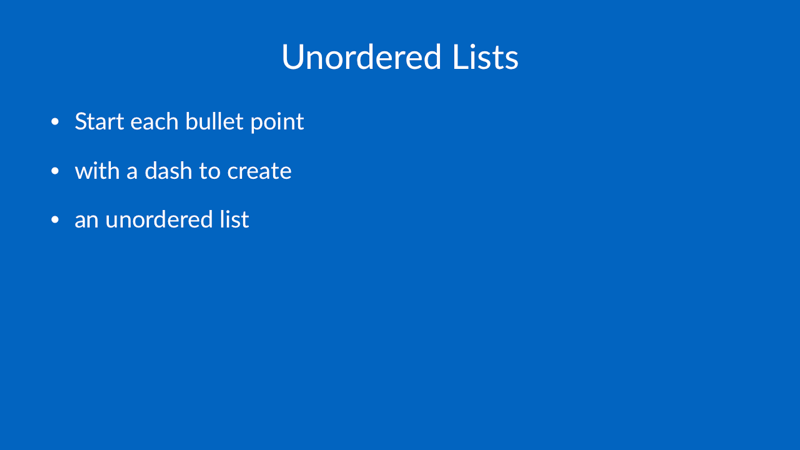
# Unordered Lists
- Start each bullet point
- with a dash to create
- an unordered list
```
```markdown
# Ordered Lists
1. Start each item with
1. a number followed by a dot
1. to create an ordered list
```

```markdown
# Use Source List Numbering
[.use-source-list-numbering]
1. Start at one
3. Skip a number
5. Keep going
```
This command applies to the next ordered list on the slide.
```markdown
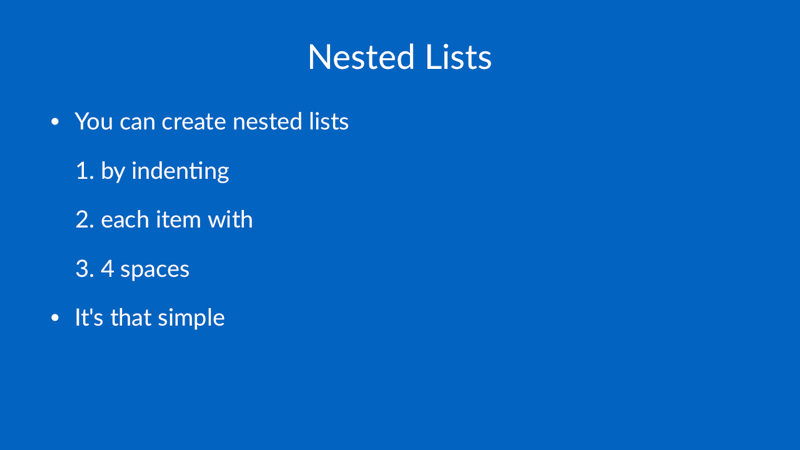
# Nested Lists
- You can create nested lists
1. by indenting
1. each item with
1. 4 spaces
- It's that simple
```
# Text Styles
```markdown
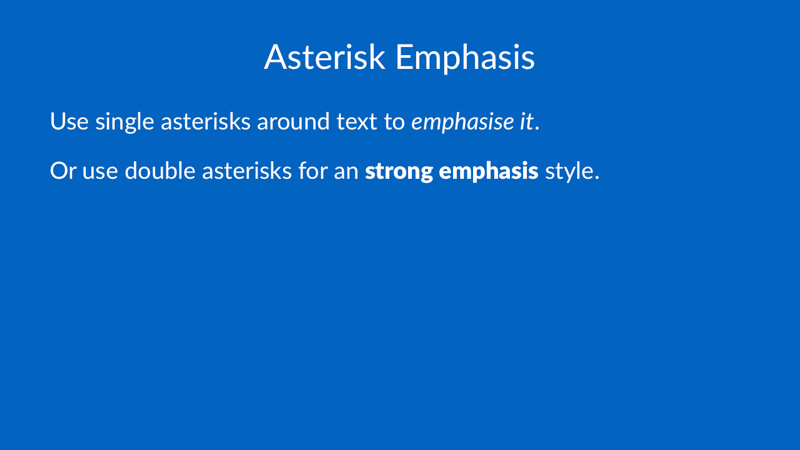
# Asterisk Emphasis
Use single asterisks around text to *emphasize it*.
Or use double asterisks for a **strong emphasis** style.
```
```markdown
# Underscore Emphasis
Alternatively, you can also use underscores to emphasize:
Wrap text in single underscores to _emphasize it_. Or use double underscores for the alternative __strong emphasis style__.
```

```markdown
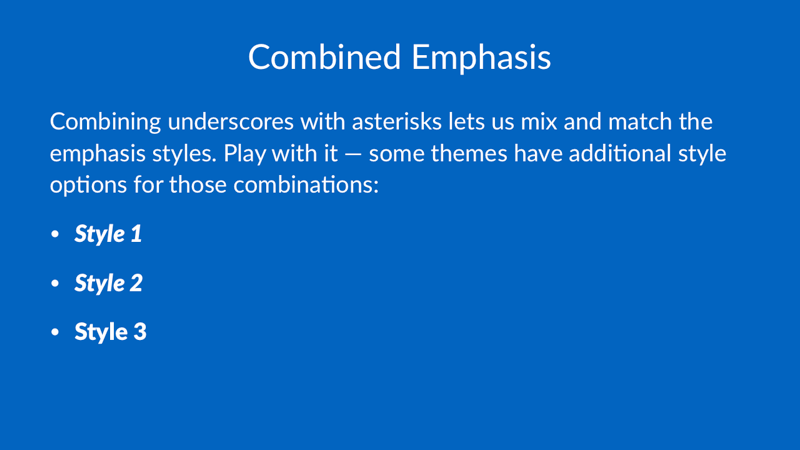
# Combined Emphasis
Combining underscores with asterisks lets us mix and match the emphasis styles. Play with it — some themes have additional style options for those combinations:
- _**Style 1**_
- __*Style 2*__
- __**Style 3**__
```
```markdown
# The same *styles* work in **headings**, too.
```

```markdown
# More Styles
- ~~Strikethrough~~
- Super<sup>script</sup>
- Sub<sub>script</sub>
- `Inline code`
```

You can also use an inline HTML `span` to apply a small set of style overrides to part of a text run:
```markdown
# Inline Span Styling
Use <span style="color: #FF3366">color</span>,
<span style="line-height: 1.2">line height</span>,
<span style="letter-spacing: 1.5">letter spacing</span>,
and <span style="text-transform: uppercase">text transform</span>.
```
Supported `span` style properties:
- `color`
- `line-height`
- `letter-spacing`
- `kern`
- `text-transform: uppercase`
- `text-transform: capitalize`
- `text-transform: none`
# Quotes
```markdown
> The best way to predict the future is to invent it
-- Alan Kay
```

```markdown
# Inline Quotes
You can also use a quote together with paragraph text or other elements on the slide:
> The best way to predict the future is to invent it
-- Alan Kay
Prefix the author of the quote with `--`, or leave it out if it's anonymous.
```

# Links
```markdown
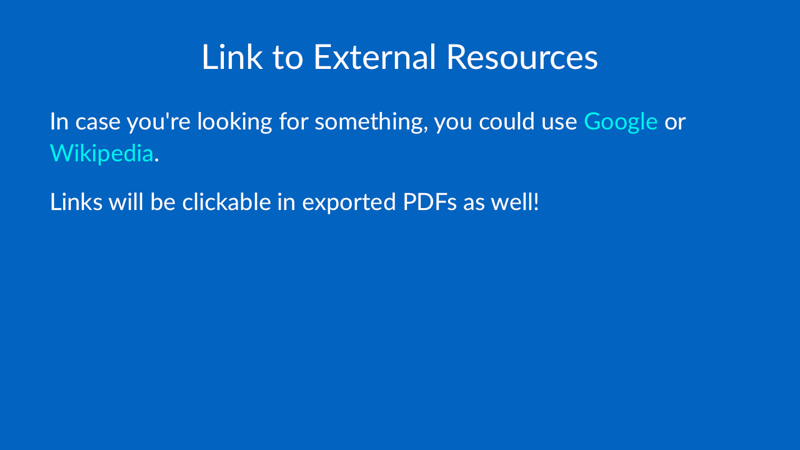
# Link to External Resources
In case you're looking for something, you could use [Google](http://google.com) or [Wikipedia](http://wikipedia.com).
Links will be clickable in exported PDFs as well!
```
```markdown
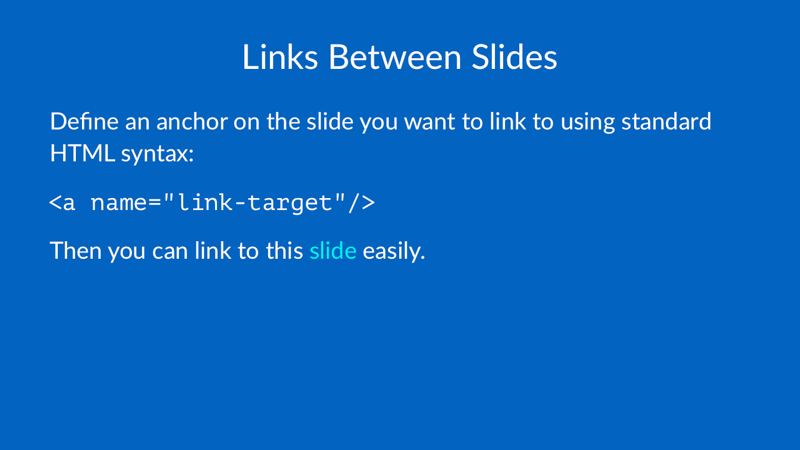
# Links Between Slides
Define an anchor on the slide you want to link to using standard HTML syntax:
`<a name="link-target"/>`
Then you can link to this [slide](#link-target) easily.
```
# Code Blocks
[//]: # "TODO: Support back ticks for code blocks within markdown code blocks"
## Syntax Highlighting
Use GitHub style fenced code blocks to specify the language.
<pre class="highlight">
```javascript
$.ajax({
url: "/api/getWeather",
data: {
zipcode: 97201
},
success: function( data ) {
$( "#weather-temp" ).html( "<strong>" + data + "</strong> degrees" );
}
});
```
</pre>

## Highlight Lines of Code
To put the focus on specific lines of your code block, use the following command:
<pre class="highlight">
[.code-highlight: 2]
```javascript
$.ajax({
url: "/api/getWeather",
data: {
zipcode: 97201
},
success: function( data ) {
$( "#weather-temp" ).html( "<strong>" + data + "</strong> degrees" );
}
});
```
</pre>

You can also highlight a range of lines:
<pre class="highlight">
[.code-highlight: 2, 6-8]
```javascript
$.ajax({
url: "/api/getWeather",
data: {
zipcode: 97201
},
success: function( data ) {
$( "#weather-temp" ).html( "<strong>" + data + "</strong> degrees" );
}
});
```
</pre>

## Show Line Numbers
You can enable line numbers directly in code fence metadata:
<pre class="highlight">
```objectivec, [.line-numbers: true]
- (BOOL)treatParagraphsAsPresenterNotes
{
return self.fileURL.paragraphsAsPresenterNotes;
}
```
</pre>
Line numbers also work with `[.code-highlight]` commands.
## Step through Highlighted Lines of Code
When presenting, you can step through multiple highlights incrementally. Place as many `[.code-highlight]` commands above a code block in the order you would like the lines of code to be highlighted when presenting.
<pre class="highlight">
[.code-highlight: none]
[.code-highlight: 2]
[.code-highlight: 6-8]
[.code-highlight: all]
```javascript
$.ajax({
url: "/api/getWeather",
data: {
zipcode: 97201
},
success: function( data ) {
$( "#weather-temp" ).html( "<strong>" + data + "</strong> degrees" );
}
});
```
</pre>
## Automatic Scaling
Don’t worry if your code is slightly too long. Deckset scales code blocks to fit automatically.
<pre class="highlight">
```ruby
def establish_connection(spec = nil)
spec ||= DEFAULT_ENV.call.to_sym
resolver = ConnectionAdapters::ConnectionSpecification::Resolver.new configurations
spec = resolver.spec(spec)
unless respond_to?(spec.adapter_method)
raise AdapterNotFound, "database configuration specifies nonexistent #{spec.config[:adapter]} adapter"
end
remove_connection
connection_handler.establish_connection self, spec
end
```
</pre>

## Inline `code`
Use code within normal text by enclosing it in backticks like this:
<pre class="highlight">`func map<A, B>(x: A?, f: A -> B) -> B?`</pre>

## Code background
Use Deckset’s customization panel for your current theme to choose a code frame or a macOS-style window.
You can also configure code backgrounds in Markdown. Use `box` with a highlight.js theme to add a rounded code frame using that theme’s background and syntax colors:
```markdown
[.code-background: box(github-dark)]
```
Use `window` with the same theme name to add a macOS-style frame with red, yellow, and green window controls:
```markdown
[.code-background: window(github-dark)]
```
Use `plain` to remove the frame and return to the presentation theme’s syntax colors:
```markdown
[.code-background: plain]
```
Add one of these commands at the top of a slide to style that slide’s code blocks. To apply the style to every slide, omit the brackets and place the command with the other global commands at the top of the document, for example `code-background: window(github-dark)`.
## Code window titles
When using the macOS-style window, add an optional title in the code fence metadata:
<pre class="highlight">
```swift, [.title: Location.swift]
typealias CLLocationAccuracy = Double
```
</pre>
Deckset centers the title above the code and truncates long titles before they reach the window controls. Blocks without a title keep the same window layout. Titles appear only with the `window` style.
# Tables
Cells are separated by pipes `|`.
Table headers are separated from the table body with a line of three dashes `---`.
```markdown
| Header 1 | Header 2 | Header 3 |
| --- | --- | --- |
| Cell 1 | Cell 2 | Cell 3 |
| Cell 4 | Cell 5 | Cell 6 |
```

## Text Alignment
With `:---:` and `---:` you can center or right align the cell content.
```markdown
| Header 1 | Header 2 | Header 3 |
| ----------- | :-----------: | -----------: |
| Cell | _Cell_ | *Cell* |
| Cell | **Cell** | __Cell__ |
```

# Formulas
Easily include mathematical formulas by enclosing TeX commands in `$$` delimiters. Deckset uses [MathJax](http://www.mathjax.org/) to translate TeX commands into beautiful vector graphics.
```markdown
$$
\left( \sum_{k=1}^n a_k b_k \right)^2 \leq \left( \sum_{k=1}^n a_k^2 \right) \left( \sum_{k=1}^n b_k^2 \right)
$$
```

## Inline Formulas
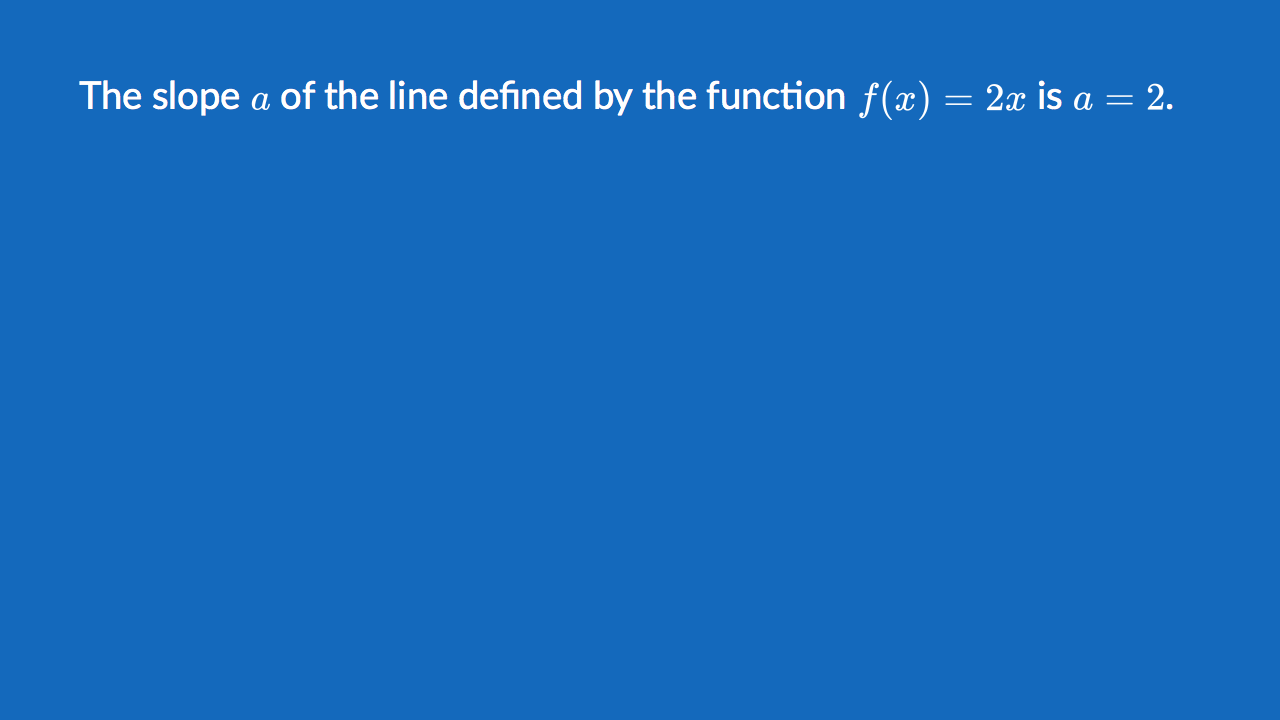
You can also include Formulas in paragraph text. Deckset takes care of adjusting the font size and color to match the surrounding text, for example:
```markdown
The slope $$a$$ of the line defined by the function $$f(x) = 2x$$ is $$a = 2$$.
```
## Formula Autoscaling
Don't worry if your equations get really complex. Deckset will scale them down to fit onto the slide.
```markdown
$$
1 + \frac{q^2}{(1-q)}+\frac{q^6}{(1-q)(1-q^2)}+\cdots =
\prod_{j=0}^{\infty}\frac{1}{(1-q^{5j+2})(1-q^{5j+3})},
\quad\quad \text{for $|q|<1$}.
$$
```

# Emojis
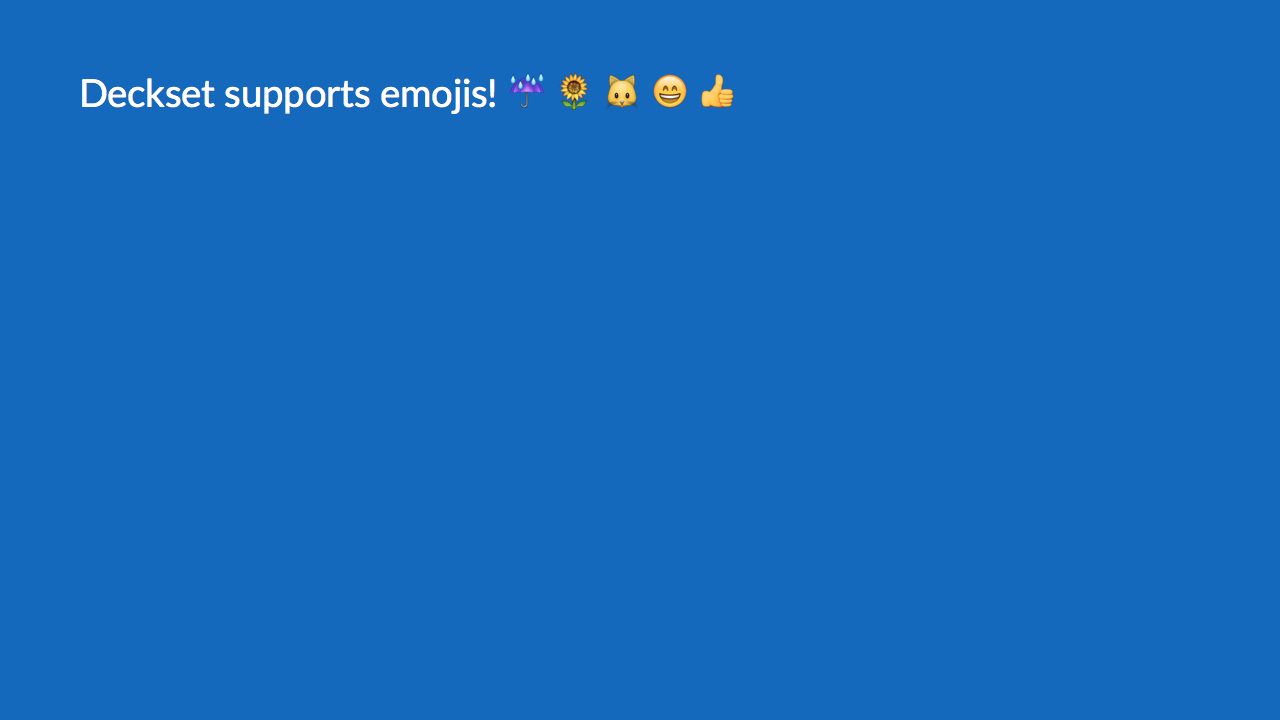
Deckset supports Slack-style emojis, e.g.: `:sunny: :umbrella: :sunflower: :cat: :smile:`
```markdown
Deckset supports emojis! :umbrella: :sunflower: :cat: :smile: :thumbsup:
```
Please refer to this [Emoji Reference Markdown file](http://deckset-assets.s3.amazonaws.com/emoji-reference.md) to see which emoji are supported in Deckset. There are a few favorites that aren’t part of Unicode yet, so we cannot support them.
# Footers and Slide Numbers
To add a persistent footer to each slide of your presentation, insert the following command at the *top* of your file:
`footer: Your footer goes here`
To add running slide numbers to each slide of your presentation, insert the following command at the *top* of your file:
`slidenumbers: true`
When combining the two commands, please make sure that there are *no empty lines* between the two.
```markdown
footer: Your footer goes here
slidenumbers: true
```
You can use standard text styles such as emphasis in your footer text, just as you would in other places too.
`footer: Use *emphasis* and ~~other~~ text styles if you like`
For richer footers, use the multi-line block form and include full markdown, images, or columns:
```markdown
footer: <<<
[.column]
Left footer text
[.column]
Right footer text
[.end-columns]
>>>
```
```markdown
footer: <<<

>>>
```
If you want to disable footers or slide numbers on individual slides, you can do so by using [per slide commands](https://docs.deckset.com/English.lproj/Customization/01-configuration-commands.html).
# Footnotes
```markdown
# Footnotes
Footnotes are a breeze, for example:
Most of the time, you should adhere to the APA citation style[^1].
Note that footnote references have to be *unique in the Markdown file*. This means you can reference footnotes from any slide, no matter where they are defined.
[^1]: For more details on the citation guidelines of the American Psychological Association check out their [website](https://www.library.cornell.edu/research/citation/apa).
```

```markdown
# Named References
Instead of just numbers, you can also name your footnote references[^Wiles, 1995].
[^Wiles, 1995]: [Modular elliptic curves and Fermat's Last Theorem](http://math.stanford.edu/~lekheng/flt/wiles.pdf). Annals of Mathematics 141 (3): 443–551.
```

# Controlling Line Breaks
```markdown
# Controlling Line Breaks
In paragraph text, Deckset respects when you start a
new
line.
This can come in handy in situations where you need more control over how text is broken up into multiple lines.
```

```markdown
# Use `<br>` for<br>line<br>breaks
You can use the HTML tag `<br>` to insert line breaks in elements that cannot contain regular new lines, such as headings or footers.
```

# Auto-Scaling
```markdown
# Auto-Scaling
At times you have to fit more content onto one slide than the default font sizes allow for.
Deckset comes with an option to auto-scale paragraph text, lists, and other body content down to fit onto the slide. To enable this behavior put
`autoscale: true`
on the first line of your markdown file.
```
On a column slide, Deckset normally fits each column separately. Add `uniform-column-scaling: true` at the top of the file, or `[.uniform-column-scaling]` on one slide, to scale all columns by the same amount.

# Columns
To lay out your content in columns, use the `[.column]` command to start a new column.
```markdown
[.column]
# First column
[.column]
# Second column.
```
Column widths are automatically generated using the available space divided evenly by the number of columns specified.
To create uneven columns, add a relative width to the column command:
```markdown
[.column: width(3)]
Main content
[.column: width(1)]
Key takeaway
```
Column widths are distributed proportionally, so `width(3)` and `width(1)` create a `3/4` and `1/4` split. Columns without an explicit width default to `width(1)`.
You can add as many columns as you like, but the more you add, the smaller the available width will be.
Combine columns with [Auto-Scaling](https://docs.deckset.com/English.lproj/Formatting/13-auto-scaling.html) to automatically scale down the text size so it fits on the slide.
By default, Deckset scales each column just enough to make its content fit. Add `[.uniform-column-scaling]` to scale all columns together on that slide, or put `uniform-column-scaling: true` at the top of the file to use it throughout the presentation.
# Background Images
## Image Options and Accessible Descriptions
Deckset interprets the text inside `![...]` as image options. Use `alt(...)` to add an accessible description to an informative image:
```markdown

```
Use `decorative` when the image does not add information that assistive technologies need to convey:
```markdown

```
Background images without `alt(...)` are treated as decorative automatically, but adding `decorative` makes that intent explicit. Quoted text is not an accessible description: use `alt(Description)` instead of `"Description"`.
## Full Background Image
```markdown

```
## Fit Background Image
```markdown

```
## Multiple Background Images
```markdown


```

## Text on Images
```markdown

# Text on Images
Setting text on images applies a filter to the image to make the text more readable.
```

## Disable Filter
```markdown

# Disable Filter
```

## Zoom In
```markdown

# Zoom In
```

## Split Slides
```markdown

# Split Slides
Use the `left` or `right` modifiers to place the image in the left or right half of the slide, respectively.
```

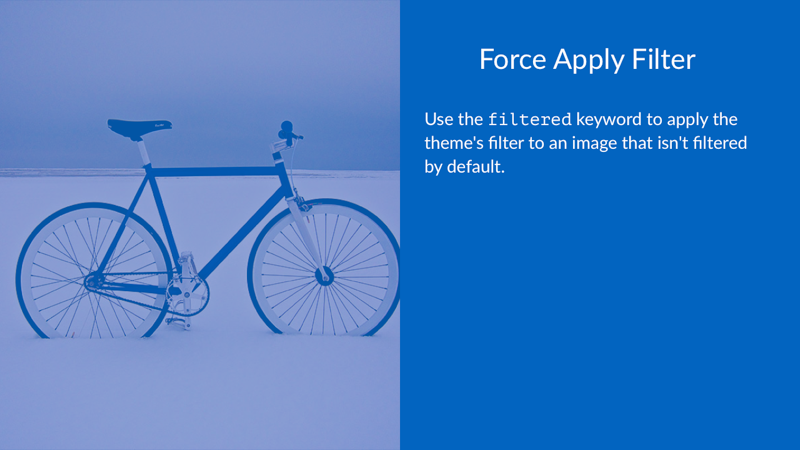
## Adjust Filters
```markdown

# Force Apply Filter
Use the `filtered` keyword to apply the theme's filter to an image that isn't filtered by default.
```
## Built-in Image Modifiers
```markdown


```
Use `bn` (or `bw`) for black-and-white, `vivid` for boosted color/contrast, and `noir`/`chrome`/`fade` for Core Image photo effect presets.
These modifiers replace the theme filter for that specific image.
## Saturation
```markdown


```
Use `saturation(value)` to set saturation directly (`0...2`, clamped).
When combined with `bn` or `vivid`, explicit `saturation(...)` wins for saturation.
## Composable Filters
```markdown


```
Mix and match filters freely. Deckset applies them in a consistent order, so you always get the same result. Positive `vignette(...)` values darken the edges. Negative values lighten them.
Additional supported controls include:
- `blur(0...1)`
- `contrast(0...2)`
- `brightness(-1...1)`
- `exposure(-2...2)`
- `vignette(-1...1)`
- `sepia(0...1)`
- `sharpen(0...1)`
## Split Slides with Fit
```markdown

# Split Slides
Combine `left` or `right` with the `fit` keyword or a percentage to adjust the image scaling.
```

## Alpha
Use `alpha` on an image to specify its opacity.
```markdown

```
## Global Background Image
To apply a background image to every slide in your presentation, simply add the `background-image` command at the very top of your Markdown file:
```markdown
background-image: image2.jpg
(rest of your content)
```
If a background image conveys information, add an `alt(...)` description and mark it `informative`. Background images without descriptions are treated as decorative during accessible export. See [Accessible Media](https://docs.deckset.com/English.lproj/Media/08-accessible-media.html).
# Inline Images
## Accessible Descriptions
Deckset interprets the text inside `![...]` as image options rather than plain Markdown alt text. Add an accessible description with `alt(...)`:
```markdown

```
If an image is purely decorative, use `decorative` instead:
```markdown

```
Quoted text such as `` is not used as the accessible description. Write `` instead.
## Combine Text and Images
```markdown

```

## Fill the Slide
```markdown

```

## Custom Scaling
```markdown

```

## Image Grids
```markdown


```

## Corner Radius

You can set corner radius of images using following Markdown:
```markdown

```
This currently only works for plain static images. Let us know if you'd like it to work for other media too.
## Inline Filter Modifiers
Use custom filter modifiers on inline images too:
```markdown


```
`bn` and `bw` are aliases. `saturation(value)` accepts `0...2` and overrides saturation from `bn`/`vivid` when combined. `noir`, `chrome`, and `fade` apply photo effect presets.
You can also compose multiple filters inline:
```markdown


```
Positive `vignette(...)` values darken the edges. Negative values lighten them.
## Accessible Descriptions
Inline images are informative by default. Give them a useful description with `alt(...)`, or explicitly mark an image as decorative:
```markdown


```
See [Accessible Media](https://docs.deckset.com/English.lproj/Media/08-accessible-media.html) for intent rules and export guidance. If you write presentations in Obsidian, see [Obsidian Media Embeds](https://docs.deckset.com/English.lproj/Media/07-obsidian-embeds.html).
# Videos
```markdown

```

```markdown
# Inline Videos

```

```markdown
# YouTube Embeds!

You can also use URL parameters like `?t=30s` to specify a start time for the clip.
```

YouTube creators can disable playback outside YouTube for individual videos. When a video cannot be embedded in Deckset, it remains on the slide with an explanation and an **Open on YouTube** button. A thumbnail wrapped in a Markdown link remains a link; it does not create an embedded player.
See [HTML Export](https://docs.deckset.com/English.lproj/Exporting/02-html.html) for the separate browser and hosting requirements for exported YouTube embeds.
## Start Time Offsets
Start offsets also work for local video and audio files, not just YouTube embeds.
```markdown

```
You can use seconds directly or combine hours, minutes, and seconds, for example `45`, `90s`, `1m30s`, or `1h2m3s`.
```markdown

# Video Layout Control
Use the same layout modifiers as with images to control the positioning of videos.
- `left` and `right`
- `fit` and `fill`
- Percentage sizing, e.g. `50%`
- `hide` to hide the video. Audio will play regardless.
```
```markdown

```
## Video Playback Control
Add playback directives after the filename to tweak how the clip behaves:
- `autoplay` — start the video automatically when the slide appears.
- `loop` — replay the video continuously.
- `mute` — silence the audio track.
Mix and match them as needed:
```markdown

```

## Automatic slide advancement
You can add `autoadvance` to the modifiers to jump to the next slide as soon as the video finishes:
```markdown

```
This only works for the last video on the slide and the slide cannot contain build lists.
## Control Video While Presenting
On macOS, press `k` in Presentation Mode to play or pause the current video. The media Play/Pause key provides the same control.
Use `alt(...)` to give an informative video a useful description, or mark a purely decorative clip with `decorative`. See [Accessible Media](https://docs.deckset.com/English.lproj/Media/08-accessible-media.html). Obsidian-style video links are covered in [Obsidian Media Embeds](https://docs.deckset.com/English.lproj/Media/07-obsidian-embeds.html).
# Audio
To add audio files to your presentation, add them to your Markdown like so:
```markdown

```
Your operating system’s file type icon will be used as a visual representation of the audio file. Use `alt(...)` to give the audio an accessible name, or add `decorative` only when assistive technologies should ignore it.
## Audio Layout Control
Use the same layout modifiers as with images to control the positioning of audio file icons.
- `left` and `right`
- `fit` and `fill`
- Percentage sizing, e.g. `25%`
- `hide` to hide the visual representation. Audio will play regardless.
## Audio Playback Control
Control audio playback by using one of those directives:
- `autoplay`
- `loop`
- `mute`
Use `alt(...)` to describe informative audio, or mark decorative audio with `decorative`:
```markdown

```
See [Accessible Media](https://docs.deckset.com/English.lproj/Media/08-accessible-media.html) and [Obsidian Media Embeds](https://docs.deckset.com/English.lproj/Media/07-obsidian-embeds.html).
# Markdown Graphs
You can add graphs to your presentation by leveraging code blocks and specifying `mermaid` as the language:
<pre class="highlight">
```mermaid
pie showData
title Key elements in Product X
"Calcium" : 42.96
"Potassium" : 50.05
"Magnesium" : 10.01
"Iron" : 5
```
</pre>
Add a description to make the diagram understandable in accessible PDF and HTML exports:
<pre class="highlight">
```mermaid, [.description: Checkout flow from cart to payment]
graph LR
Cart --> Payment
```
</pre>
You can use `desc` as a shorter alias and quote descriptions that contain punctuation. See [Accessible Media](https://docs.deckset.com/English.lproj/Media/08-accessible-media.html) for more guidance.
You can also use the customization menu to specify base colors for Mermaid graphs:
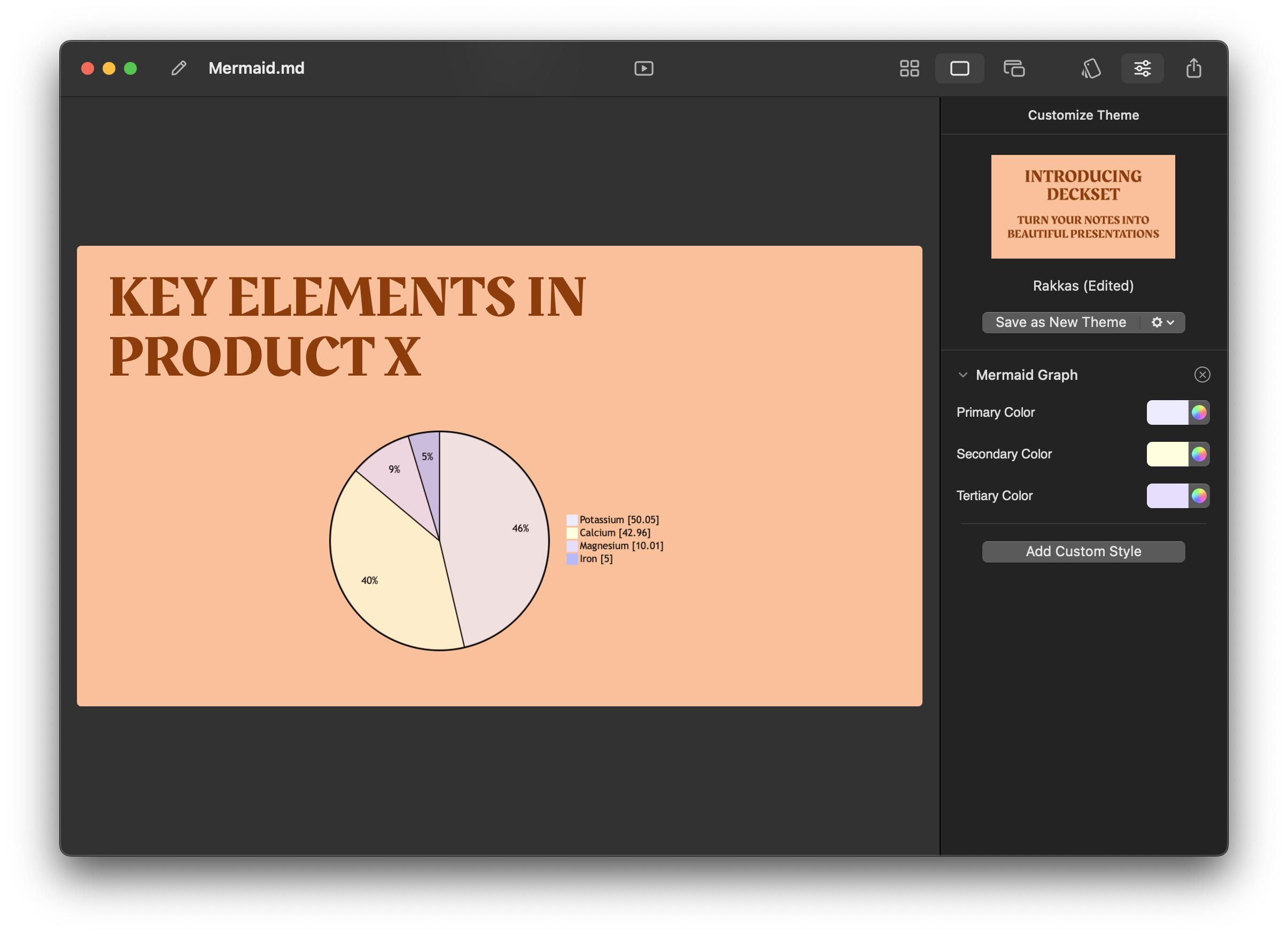
You can override Mermaid colors per slide with the markdown graph customization command. Provide up to three colors plus an optional dark-mode flag:
```markdown
[.graph: #ffffff, #aaffff, #000000, dark-mode(false)]
```
See also [Custom theming](https://docs.deckset.com/English.lproj/Customization/02-custom-theming.html) for more slide-level overrides.
Learn more about available graph types in the [Mermaid.js documentation](https://mermaid.js.org/intro/). Zenuml diagrams are not supported yet—let us know via support if you need them.
# Pikchr Diagrams
Pikchr diagrams work the same way as other inline media—wrap your markup in a fenced code block and declare the language as `pikchr`:
<pre class="highlight">
```pikchr
arrow right 200% "Markdown" "Source"
box rad 10px "Markdown" "Formatter" "(markdown.c)" fit
arrow right 200% "HTML+SVG" "Output"
arrow <-> down 70% from last box.s
box same "Pikchr" "Formatter" "(pikchr.c)" fit
```
</pre>
You can reuse the graph customization command to control the base colors that Pikchr uses. This lets the diagram blend in with your slide theme:
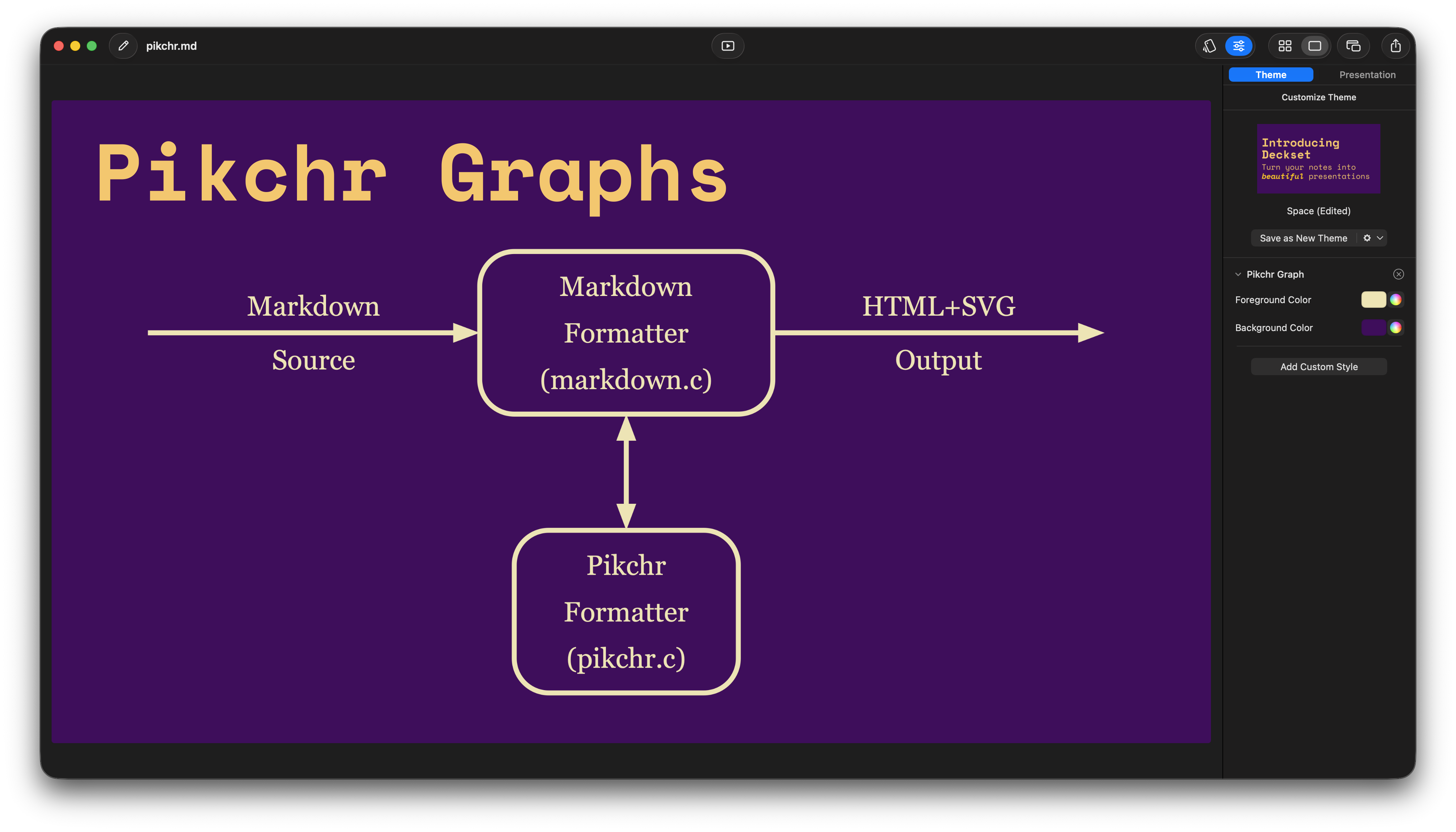
You can also override the Pikchr colors per slide using the markdown command. The first color controls strokes and text; the second is the diagram background:
```markdown
[.pikchr-graph: #f8f8f8, #003366]
```
See also [Custom theming](https://docs.deckset.com/English.lproj/Customization/02-custom-theming.html) for more slide-level overrides.
Need more syntax ideas? Browse the [official Pikchr documentation](https://pikchr.org/home/doc/trunk/doc/examples.md) for ready‑made examples you can paste into Deckset.
# Mentimeter results embeds
Display Mentimeter slides and live results inside Deckset using Mentimeter's webpage embed. You need an internet connection and a working Mentimeter activity. Participants respond from their own phones or laptops via `menti.com`.
## Start and control a live session
**Opening an embed in Deckset does not start a live Mentimeter presentation.** Advancing Deckset slides does not advance questions on participants' devices.
For presenter-paced questions, open the presentation in Mentimeter and click **Start presentation**. Keep Mentimeter's presenter view available to control the questions while Deckset displays the results. See [Mentimeter's presentation controls](https://help.mentimeter.com/en/articles/375448-this-is-the-presentation-view).
Deckset's results embed has no presenter-session integration. Mentimeter's [PowerPoint add-in](https://help.mentimeter.com/en/articles/1720503-add-and-present-mentimeter-slides-in-the-powerpoint-add-in) separately supports starting live presentations from PowerPoint.
## Add an embed
In Mentimeter, open **Share**, find **Embed slides**, and copy the URL from the embed code's `src` attribute. Paste that URL into Deckset's media syntax:
```markdown

```
Replace `PRESENTATION_ID` with your activity's identifier, or paste the complete URL from Mentimeter. Keep any query parameters, but do not paste the entire `<iframe>` tag. Participant links on `menti.com` and regular edit or share links will not work as embeds. Deckset also recognizes Mentimeter's older `https://www.mentimeter.com/embed/PRESENTATION_ID/VIEW_ID` format.
Deckset only embeds Mentimeter URLs it recognizes. The optional `embed` modifier can help you spot an unsupported URL, but it does not make other websites or HTML embeddable.
## Choose a layout
Use the normal media layout modifiers:
```markdown

# Join the discussion
Submit your answer from your phone.
```
```markdown
# Results

```
The embed uses a 16:9 desktop view and scales to fit the available space. Use `left`, `right`, or `inline` to place it. The default `fit` option shows the whole activity; `fill` crops the edges to fill the media area. A percentage changes the size of the 1280 × 720 embed before Deckset scales the slide. For example, `50%` uses 640 × 360 points.
## Presenting and keyboard control
The embedded slides and live results appear in the preview and presentation window. Click inside the embed to interact. On macOS, press **Escape** once to return keyboard focus to Deckset, then use the usual presentation shortcuts. Navigating away also returns focus to Deckset.
When both preview and audience windows are open, the audience sees the live activity while the preview shows a placeholder. Presenter views and thumbnails stay static. Deckset keeps a few recently viewed activities loaded, so they usually stay where you left them. Older activities may reload when you return, and all activities reload after Deckset restarts.
If loading fails, use **Retry** or **Open in browser**. Sign in and manage participants through Mentimeter; Deckset only displays the activity.
## Posters, printing, and exports
Use `alt(...)` for a meaningful description. Text inside the brackets without `alt(...)` is treated as media options, not as a description.
Thumbnails, PDF and image exports, and printed HTML show a static window with your description instead of the live results. Without a description, the window says “Interactive Mentimeter slide”. To show your own image, add `poster(...)`:
```markdown

```
Poster paths are relative to the Markdown document, and asset URLs work too. Avoid literal parentheses in poster paths. Deckset copies local posters into the assets when converting to a Text Bundle. A 16:9 poster fits the embed best.
[HTML export](https://docs.deckset.com/English.lproj/Exporting/02-html.html) includes both the live activity and its static fallback. The live version needs an internet connection; printing uses the poster or descriptive frame. A PDF stays static but links to the activity. Deckset does not take a screenshot of the responses for you.
# Obsidian media embeds
Deckset recognizes Obsidian-style wikilinks when their target is a supported image, audio, or video file:
```markdown
![[image.png]]
![[audio.mp3]]
![[video.mov]]
```
The leading exclamation mark is optional for recognized media files. Wikilinks to notes or other non-media files remain ordinary text instead of becoming Deckset media.
## Add Deckset modifiers
Put Deckset's regular media modifiers after the pipe character. Deckset reads everything after the pipe as media options, not as an Obsidian display alias:
```markdown
[[image.png|50%, inline]]
![[Images/Hero Image.PNG|80%, background]]
![[video.mov|inline autoplay mute]]
```
Nested paths, spaces, uppercase extensions, URL query strings, and fragments all work. Use the full filename, including its extension, and a path relative to the presentation or its Text Bundle assets. Deckset does not search your Obsidian vault or configured attachment folder, and it cannot resolve a media name without its extension.
Obsidian pixel-size shorthand such as `|300` is not a Deckset size command. Use Deckset percentages such as `|inline 50%` instead.
Accessibility modifiers work here too:
```markdown
![[Charts/revenue.png|inline informative alt(Quarterly revenue increased by 18 percent)]]
```
See [Accessible Media](https://docs.deckset.com/English.lproj/Media/08-accessible-media.html) for guidance on informative and decorative media.
# Accessible media
Deckset uses media descriptions in accessible PDF and HTML exports. Add `alt(...)` to the same modifier area used for layout and playback options:
```markdown


```
Describe what the media communicates, not just its filename. Include visual details when they help someone understand the slide, and avoid repeating nearby text unless necessary.
## Informative and decorative intent
Use `informative` when the media conveys information that must be available to assistive technology:
```markdown

```
This is especially useful for a meaningful full-slide or split background. An informative item should also have an `alt(...)` description.
Use `decorative` when the media adds no information and should be ignored by assistive technology:
```markdown

```
Do not add an `alt(...)` description to decorative media. If both intent modifiers appear, the last one wins.
Without an explicit intent:
- Media with `alt(...)` is informative.
- A background image without `alt(...)` is decorative.
- Foreground media without `alt(...)` is informative and can produce an export issue because it has no useful description.
These modifiers apply to images, SVG files, audio, video, YouTube embeds, and individual items in a media group. They also work in [Obsidian media embeds](https://docs.deckset.com/English.lproj/Media/07-obsidian-embeds.html).
## Review warnings while you work
On macOS, open **Presentation Options** and turn on **Show Accessibility Warnings**. Deckset marks slides with missing or unrecognized media descriptions in the slide grid, Preview, and Floating Preview.
This option is off by default and is saved with the presentation. It only controls the warnings shown while you work. PDF and HTML export validation still runs whether the option is on or off.
## Audio and video transcripts
An `alt(...)` description can name or summarize a recording, but it does not provide captions or a transcript. Add essential spoken information as visible text on the slide or in an accompanying transcript. Deckset does not currently have a Markdown command for attaching a caption track.
## Describe Mermaid diagrams
Put a description command in the Mermaid fence metadata:
<pre class="highlight">
```mermaid, [.description: Checkout flow from cart to payment]
graph LR
Cart --> Payment
```
</pre>
`desc` is a shorter alias and quoted descriptions are supported:
<pre class="highlight">
```mermaid, [.desc: "Checkout: cart to payment"]
graph LR
Cart --> Payment
```
</pre>
The `.description` and `.desc` commands work with Mermaid, but not yet with Pikchr. Include essential diagram information as visible text, or use an image with a useful `alt(...)` description.
See [Accessible PDF Export](https://docs.deckset.com/English.lproj/Exporting/01-accessible-pdf.html) and [HTML Export](https://docs.deckset.com/English.lproj/Exporting/02-html.html) for export-specific validation and recovery behavior.
# Configuration commands
Use commands to configure your presentation settings. Commands can either be applied *globally* — if put at the top of your Markdown file — or *per slide* to set or override global settings. When using global configuration commands, make sure that there are *no line breaks* between any other commands at the top of your markdown file.
## Scale content to fit the slide
At times you have to fit more content onto one slide than the default font sizes allow for.
Deckset comes with an option to auto-scale paragraph text, lists, and other body content down to fit onto the slide. To enable this behavior put the following command at the top of your markdown file:
```markdown
autoscale: true
```
You may turn this on or off on an individual slide by declaring `[.autoscale: true]` or `[.autoscale: false]` on the respective slide.
## Keep columns at the same scale
By default, Deckset fits each column separately. To scale all columns by the same amount, add:
```markdown
uniform-column-scaling: true
```
For a single slide, use `[.uniform-column-scaling]`, `[.uniform-column-scaling: true]`, or `[.uniform-column-scaling: false]`. Add `autoscale: true` as well if Deckset should shrink regular body text to fit.
## Build lists
In Presenter and Rehearsal mode, you may want list items to appear one by one. To achieve this with Deckset, use the following command:
```markdown
build-lists: true
```
You can also specify different modes of building lists:
```markdown
build-lists: all # Equivalent to true
build-lists: notFirst # Will always show first item of a list
```
Please note that this only affects Presenter (and Rehearsal) mode.
You may turn this on or off on an individual slide by declaring `[.build-lists: true]` or `[.build-lists: false]` on the respective slide.
## Slide numbers
To add running slide numbers to your presentation use the following command:
```markdown
slidenumbers: true
```
You may turn this on or off on an individual slide by declaring `[.slidenumbers: true]` or `[.slidenumbers: false]` on the respective slide.
To add the count of slides in your presentation, use the `slidecount: true` command. You may also turn this off on an individual slide by declaring `[.slidecount: true]` or `[.slidecount: false]` on the respective slide.
## Footers
To add a persistent footer to each slide of your presentation, use the following command:
```markdown
footer: My Footer content
```
To override your global footer or to add a footer to a single slide, add `[.footer: A different footer]` to the respective slide.
You may turn off the footer on an individual slide by declaring `[.hide-footer]` on the respective slide.
For multi-line footers or richer layouts, use the block form and include full markdown, images, or columns:
```markdown
footer: <<<
[.column]
Left footer text
[.column]
Right footer text
[.end-columns]
>>>
```
```markdown
footer: <<<

>>>
```
## Corner logos
To place an image in a corner throughout your presentation, add `logo` to the commands at the top of the file:
```markdown
logo: brand/company-mark.svg, bottom-right, medium, margin(40), alt(Company)
```
Use the image path first, followed by comma-separated options. Raster images and SVGs are supported. The default is `top-right`, `medium`, with `margin(40)`.
- **Corner:** `top-left`, `top-right`, `bottom-left`, or `bottom-right`.
- **Size:** `S` or `small`, `M` or `medium`, `L` or `large`, or `original`. The `size(...)` form also works, for example `size(original)`.
- **Margin:** `margin(40)` sets the slide-edge margin and the clearance from nearby content in reference-slide points. Use a nonnegative number. Margins that are too large are reduced to fit the slide.
- **Image options:** use `alt(...)` for an accessible description, `decorative` for a purely decorative mark, and options such as `alpha(...)` and `corner-radius(...)` as needed. Commas inside `alt(Company, Inc.)` are preserved.
Small, medium, and large logos can use up to 7.5%, 11%, and 15% of the slide's width and height while keeping their proportions. On a 1280 × 720 slide, for example, a medium logo fits within 140.8 × 79.2 points. The `original` option uses the image's own size, shrinking it only when needed to fit the slide and margins.
Deckset keeps nearby content clear of the logo. A short bottom logo can sit beside a footer, while a tall one extends upward. If footer text, slide numbers, or footnotes no longer fit beside it, they move above it. Transparent padding inside the image can make the visible gap look larger. Try a named size if an original-size logo takes up too much room.
The logo applies to the whole presentation and cannot be changed on a single slide. To disable it, leave the image path empty (`logo: , top-right`) or add the `hide` image option. If the file contains more than one global `logo` command, the last one wins.
## Slide transitions
In Presenter mode, you may want to transition between slides. To achieve this with Deckset, use the following command:
```markdown
slide-transition: true
```
You can control the duration of the transition by passing in the value in seconds: `slide-transition: fade(0.3)`.
Available transition styles include `fade`, `fadeThroughColor`, `push`, `move`, `reveal`, `flip`, `wipe`, `zoom`, `barnDoor`, `wipeFromCenter`, `iris`, and `spotlight`.
You may also use this command on a single slide, like so: `[.slide-transition: fade(0.3)]`, `[.slide-transition: flip(0.6, horizontal)]`, `[.slide-transition: wipe(0.45, left)]`, `[.slide-transition: zoom(0.4)]`, `[.slide-transition: barnDoor(0.5, vertical)]`, `[.slide-transition: wipeFromCenter(0.5, horizontal)]`, `[.slide-transition: iris(0.5)]`, or `[.slide-transition: false]`.
## Use headers as slide dividers
To automatically start a new slide with each header, use the
```markdown
slide-dividers: #, ##, ###, ####
```
command and specify the header levels you would like to take into account.
Please note that this command can only be used globally, at the top of your Markdown file.
With `slide-dividers`, a per-slide command between two divider headers applies to the slide started by the first header. To configure the next slide before its header, add an explicit `---` separator and put the command immediately after it.
## Position header-only slides vertically
To set the vertical position of slides containing only headers, add this command at the top of your Markdown file:
```markdown
header-vertical-alignment: center
```
The available values are `top`, `center`, and `bottom`. You can override the global value on an individual slide:
```markdown
# Quarterly results
[.header-vertical-alignment: bottom]
```
The per-slide value overrides the global value and has no effect on slides with body content. Footers, footnotes, slide numbers, and background images do not count as body content, so the command still applies.
If the selected alignment matches the theme default, Deckset keeps the theme's original position.
## Treat paragraphs as presenter notes
To move regular paragraphs into presenter notes (without having to prefix them with `^`), use:
```markdown
paragraphs-as-presenter-notes: true
```
Please note that this command can only be used globally, at the top of your Markdown file.
## Time budget
On macOS, open the presentation options sidebar and find **Time Budget**. Enable **Use time budget** and set **Duration** in minutes. The sidebar accepts 1–720 minutes with up to one decimal place and shows elapsed time and pacing in Presenter and Rehearsal modes.
The sidebar choice is saved with the document. Plain Markdown files store it as file metadata, which may be lost when emailing files or using version control; Text Bundles store it in the bundle metadata. To keep the setting in the Markdown itself, use:
```markdown
time-budget: 20
```
When the Markdown contains a `time-budget` command, it wins over the sidebar setting and disables those controls. Edit or remove the command to change the time budget in the sidebar again.
The budget timer starts when you advance from slide 1 to slide 2. If you jump to a later slide, the timer starts immediately with time credited based on the average time per slide. The timer stays green while you are on pace, turns yellow when you fall behind pace, and turns red after the total budget is exceeded.
Please note that this command can only be used globally, at the top of your Markdown file.
## Default code language
You can specify a default code language by adding it at the top of your Markdown file:
```markdown
code-language: Swift
```
## Code background
Use `code-background` to control the appearance of code blocks. A boxed background uses the background and syntax colors from the named highlight.js theme:
```markdown
code-background: box(github-dark)
```
Use `window` with the same theme name to add a macOS-style frame with red, yellow, and green window controls:
```markdown
code-background: window(github-dark)
```
Use `plain` to remove the code frame and use the presentation theme’s syntax colors:
```markdown
code-background: plain
```
All three values can also be applied to an individual slide, overriding the global setting:
```markdown
[.code-background: box(github-dark)]
[.code-background: window(github-dark)]
[.code-background: plain]
```
## Document title and content language
Add either or both commands at the top of your Markdown file to set the presentation title and language:
```markdown
title: Quarterly results
language: en-GB
```
The title becomes the document title when you export to HTML.
`language` tells Deckset which language the presentation uses. Deckset can then apply the right rules for line breaks, punctuation, glyphs, and language-specific theme fonts. The command also sets the document language in PDF and HTML exports; in HTML, it sets the writing direction too.
If you leave the command out, Deckset detects the main language from the presentation text when you export to PDF or HTML. Set it explicitly when the text is too short to identify reliably, or when typography and pronunciation matter.
Deckset can create localized formula descriptions in English, German, Spanish, and French. For other languages, including Chinese, Japanese, and Korean, it uses an English description and marks it as English for screen readers.
Use a [BCP 47 language tag](https://www.rfc-editor.org/rfc/rfc5646.html), such as `en-GB`, `zh-Hans` for Simplified Chinese, `zh-Hant` for Traditional Chinese, `ja` for Japanese, or `ko` for Korean.
These commands can only be used globally, at the top of your Markdown file.
## Store theme choice in document
Deckset does store the theme choice as metadata to the file. In some cases, this information can get lost, e.g. in version control systems or when sending the file via email.
To make sure the theme choice doesn’t get lost, you can use the following command, referencing any theme by its name: `theme: Fira`.
If you also want to specify the color choice, you can reference the number of the color swatch as it appears within Deckset e.g.:
```markdown
theme: Fira, 3
```
Please note that this command can only be used globally, at the top of your Markdown file.
## Automatically fit headers
Deckset allows you to fit header to entire slide to get that signature font look. However repeating this for every slide might be a bit cumbersome. You can address that by using the `fit-header` command like so:
```markdown
fit-header: #, ##
```
Note that this only works as a global command and needs to be placed on top of your md file.
## Global Background Image
To apply a background image to every slide in your presentation, simply add the `background-image` command at the very top of your Markdown file:
```markdown
background-image: image2.jpg
(rest of your content)
```
## Presentation pause screen
In Presentation Mode, press `w` to show a pause slide. Define its contents at the top of your Markdown file with a `pause-screen` block:
```markdown
pause-screen: <<<
[.background-color: #F7F4ED]
[.header: #202020]
[.text: #202020]
# Back in 10 minutes

Wi-Fi: **GuestNet**
>>>
```
The pause slide supports the same Markdown and per-slide styling commands as a regular slide, including inline and background images, math, code, Mermaid, and Pikchr diagrams. It inherits the current theme, then applies commands inside the block. It does not appear in slide navigation, slide counts, thumbnails, or exports, and it never shows a footer, slide numbers, builds, or transitions.
The earlier image and text commands remain supported for existing presentations:
```markdown
pause-screen-image: break.png
pause-screen-text: Back in 10 minutes
```
When `pause-screen` is present, Deckset ignores the older image and text commands. Image paths work just like they do on a regular slide. Press `w` to show or hide the pause slide; `b` still shows or hides the black screen.
## Default image corner radius
To set a global default corner radius for images, add the following command at the top of your Markdown file:
```markdown
image-corner-radius: 12
```
This default applies only when no explicit `corner-radius(...)` is provided in the image options. For example:
```markdown

```
# Custom theming
Deckset supports two kinds of theme customization:
- Use the customization panel to change a theme and save it as a reusable custom theme.
- Use [customization commands](#text-and-headers) in your Markdown file to adjust an entire presentation or an individual slide. These commands override settings made in the customization panel.
To learn how to save, rename, export, and import reusable themes, see [Create and share custom themes](https://docs.deckset.com/English.lproj/Customization/03-managing-custom-themes.html).
See [Choosing a theme](https://docs.deckset.com/English.lproj/Customization/03-built-in-themes.html) for the theme picker, color variants, and saving your choice in Markdown.
## Text and Headers
To customize the look and feel of your text and headers, you may add customization commands to `text`, `text-emphasis`, `text-strong`, `header`, `header-emphasis`, `header-strong`, `slidenumber-style` and `footer-style` with the desired color, alignment, line-height, text-scale, font and capitalization.
Use `text-scale(...)` to control text size.
```markdown
[.text: #000000, alignment(left|center|right), line-height(10), text-scale(2.0), kern(1), Avenir Next Regular]
[.header: #FF0000, alignment(left|center|right), line-height(18), text-scale(3.0), Avenir Next Bold, capitalization(default|upper|title)]
[.footer-style: #2F2F2F, alignment(left|center|right), line-height(8), text-scale(1.5), Avenir Next Regular]
```
We recommend using Mac's native Font Book application to search for fonts.
## Background color
To customize the background color of your slide, you may use the following customization command:
```markdown
[.background-color: #FF0000]
```
## Lists
To customize your list styles, you may add customization commands for the list color, bullet-character, alignment, bullet color, text scale, and ordered and unordered bullet indent.
```markdown
[.list: #000000, bullet-character(Custom String), alignment(left|center|right), bullet-color(#ffcc00), text-scale(1.2), bullet-indent(40), ordered-bullet-indent(20)]
```
## Tables
To customize the style of your tables, you may use the following commands:
```markdown
[.table-separator: #000000, stroke-width(10)]
[.table: margin(5)]
```
## Code
Deckset automatically picks a random set of colors with high enough contrast against the chosen background color for your code. You may add customization commands for the line-height and font family.
For consistent styles between code blocks and to prevent palette regeneration, use seed number `42` for persistence.
```markdown
[.code: auto(42), Font Family Name, line-height(4.2)]
```
Use `auto` without a seed to regenerate colors on each display:
```markdown
[.code: auto]
```
Manual palettes support 1–5 colors. If fewer than five are provided, the list repeats to fill the palette.
```markdown
[.code: #ffcc00, #1b1b1b, #ffffff]
```
You can also control alpha code build-in by specifying following command:
```markdown
[.code: dimmed-opacity(0.2)]
```
Standard text overrides such as `text-scale(...)` and `alignment(...)` also apply to code blocks.
## Inline code
Inline code shares the same customization options as code blocks, but only affects inline code spans. If both `.code` and `.inline-code` are present, inline code uses the `.inline-code` override.
```markdown
[.inline-code: text-scale(0.9), Font Family Name, auto(42)]
```
## Footnotes
To customize the look and feel of footnotes, you may use the following commands:
```markdown
[.footnote: #000000, alignment(left|center|right), line-height(10), text-scale(2.0), Avenir Next Regular]
```
Style the horizontal ruler that separates the footnote from the slide content like so:
```markdown
[.footnote-separator: #001100, height(10), margin(12)]
```
## Formulas
To customize the style of formulas, you may use the following command:
```markdown
[.formula: text-scale(42), alignment(center), #ff0011]
```
## Links
Link styles can be customized with color, font, line height, text scale, and underline options. The underline style supports `none`, `single`, `thick`, or `double`, with an optional `byWord` modifier.
```markdown
[.link: #00aaff, Avenir Next Regular, line-height(10), text-scale(1.1), underline(single, byWord)]
```
## Quotes
To customize the style of quotes, you may use the following commands:
```markdown
[.quote: #000000, alignment(left|center|right), line-height(10), text-scale(2.0), Avenir Next Regular]
```
To customize the style of the quote’s author, use:
```markdown
[.quote-author: #000000, alignment(left|center|right), line-height(10), text-scale(2.0), Avenir Next Regular]
```
## Presenter notes
Presenter notes accept the same text customization controls as normal text styles.
```markdown
[.presenter-notes: #333333, alignment(left), line-height(9), text-scale(0.9), Avenir Next Regular]
```
See also [Presenter notes](https://docs.deckset.com/English.lproj/Presenting/presenter-notes.html) for authoring and preview tips.
## Mermaid graphs
Mermaid diagrams use the shared graph customization command so you can pick distinct primary, secondary, and tertiary colors (plus an optional dark‑mode toggle):
```markdown
[.graph: #ffffff, #aaffff, #000000, dark-mode(false)]
```
See also [Mermaid diagrams](https://docs.deckset.com/English.lproj/Media/05-mermaid.html) for syntax and examples.
## Pikchr diagrams
Pikchr diagrams have their own two-color command. The first value controls the diagram foreground (strokes, text, etc.) and the second value is the background fill; omit the second color to fall back to the slide background:
```markdown
[.pikchr-graph: #f8f8f8, #003366]
```
See also [Pikchr diagrams](https://docs.deckset.com/English.lproj/Media/06-pikchr.html) for syntax examples.
## Store theme choice in document
Deckset does store the theme choice as metadata to the file. In some cases, this information can get lost, e.g. in version control systems or when sending the file via email.
To make sure the theme choice doesn’t get lost, you can use the following command `theme: Fira`.
If you also want to specify the color choice, you can reference the number of the color swatch as it appears within Deckset e.g.:
```markdown
theme: Fira, 3
```
Please note that this command can only be used globally, at the top of your Markdown file.
# Choosing a theme
Open Deckset's theme picker to preview the available themes. Select a theme, then choose one of its color swatches. You can change the typography and colors without rewriting your slides.
## Save the theme in Markdown
To keep the theme choice with your presentation when sharing or using version control, add a global command at the top of the Markdown file:
```markdown
theme: Ledger, 4
```
Use the theme name shown in the picker. The number is the color swatch's position, starting at 1 from the left. In this example, `4` selects Ledger's Carbon variant.
Use one theme command per presentation. See [Custom Theming](https://docs.deckset.com/English.lproj/Customization/02-custom-theming.html) for slide-specific styling overrides.
# Create and share custom themes
In Deckset for macOS, you can customize one of the built-in themes and save the result as a reusable theme.
## Create a custom theme
1. Select the theme you want to use as your starting point.
2. Click **Customize** in the toolbar to open the theme customization panel.
3. Make your changes.
4. Click **Save as New Theme**. This button becomes available after you make a change.
5. Open the theme options menu next to **Save as New Theme** and choose **Rename** to give the new theme a name.
The new theme appears in the theme gallery immediately. You do not need to export and reimport it.
To create another independent copy of a custom theme, make your changes and use **Save as New Theme** again.
## Rename, reset, or remove a theme
Open the theme options menu to:
- **Rename** a custom theme.
- **Revert to Original** to discard its customizations.
- **Remove** a custom theme from Deckset. Removing a theme cannot be undone, so export a copy first if you want to keep it.
For the available style settings and Markdown overrides, see [Custom theming](https://docs.deckset.com/English.lproj/Customization/02-custom-theming.html).
## Export a theme
To share a theme or move it to another Mac, open its options menu and choose **Export**. Deckset saves it as a `.dstheme` file.
Exporting does not create another theme in the gallery. It saves a file that you can share, transfer, or keep as a backup.
## Import a theme
Choose **File → Import Theme…** and select the `.dstheme` file. A theme that is not already installed will appear in the theme gallery.
If the theme already exists, Deckset asks whether to replace the existing version. Replacing it updates that theme rather than adding another gallery entry.
## Why doesn't a duplicated theme file create a new theme?
Every `.dstheme` file contains an internal identifier. Deckset uses this identifier—not the filename or visible theme name—to decide whether two files represent the same theme.
Renaming a `.dstheme` file, or editing only its visible name, does not create a separate theme. A copied file retains the same identifier, so Deckset treats it as another version of the existing theme.
To create a separate theme, use **Save as New Theme** inside Deckset. This assigns a new identifier automatically.
# Build Steps
When presenting, you often want list items to appear one by one. Enable that behavior by adding this command to the top of your file:
```markdown
build-lists: true
```
You can also specify different build modes:
```markdown
build-lists: all # Equivalent to true
build-lists: notFirst # Will always show first item of a list
```
If you want to disable or tweak this on individual slides, use [per slide commands](https://docs.deckset.com/English.lproj/Customization/01-configuration-commands.html)—for example `[.build-lists: false]` or `[.build-lists: not_first]` to always reveal the first bullet immediately and build the rest.
# Highlight the Cursor
In Presentation Mode on macOS, press `c` to show or hide the cursor effect. It starts off each time you begin presenting or switch presentation modes.
On macOS 15 or later, open **Deckset > Settings > Presentation** and find **Cursor Highlight**. Choose **Highlight** to draw a colored highlight around the pointer, or **Spotlight** to dim the slide outside a soft-edged area around the pointer. The color control applies to Highlight and is disabled for Spotlight.
Choose the style in Settings, then use `c` while presenting to turn it on when you need it. The cursor effect is a presentation control; it is separate from the `spotlight` [slide transition](https://docs.deckset.com/English.lproj/Presenting/transitions.html).
# Hide Slides
If you want to prevent particular slides (or pieces of content) from being presented but want to keep them in your document, you can do it like this:
```markdown
<!--
This slide will be hidden.
-->
```
# Switch Presenter Display
When using a projector or secondary display, you can switch the presenter display in Presentation Mode with the `x` keyboard shortcut.
When presenting on iPad, you can advance slides by tapping on a paired Apple Pencil.
# Presenter Notes
## Using presenter notes
Deckset turns every paragraph that starts with a `^` into presenter notes and doesn’t show this text on the slides.
You’ll see these notes on the presenter display (with two screens connected) or by using the rehearsal mode.
To start another presenter note paragraph, prefix it with a caret again. Deckset will automatically scale the notes down to fit onto the presenter display in case you have a lot of text.
Example:
```markdown
# My slide title
^ This is a presenter note.
```

## Customize the display of presenter notes
To customize the style of presenter notes, in both Presenter and Rehearsal modes and in exported documents, you may use the `presenter-notes` command like so:
```markdown
presenter-notes: #333333, alignment(left|right|center), line-height(9), text-scale(0.9), kern(0.5), capitalization(default|upper|title), Helvetica
```
You may also use this command on a single slide, like so:
```markdown
[.presenter-notes: #333333, alignment(left|right|center), line-height(9), text-scale(0.9), kern(0.5), capitalization(default|upper|title), Helvetica]
```
## Treating all paragraphs as presenter notes
You can configure Deckset to treat all paragraphs as presenter notes. To do so either add
```markdown
paragraphs-as-presenter-notes: true
```
at top of your Markdown file or turn on the "Paragraphs as presenter notes" option in presentation settings view.
## Preview presenter notes in the main window
To preview your presenter notes in the main application window, you can turn them on by selecting `Toggle Presenter Notes` from the `View` menu.
See also [Custom theming](https://docs.deckset.com/English.lproj/Customization/02-custom-theming.html) for slide-level styling options.
# Transitions
## Enabling transitions
When presenting, you may want to transition between slides. Enable transitions with this command:
```markdown
slide-transition: true
```
## Transition styles
The following transition styles are available:
* `fade` — crossfades between slides (default).
* `fadeThroughColor(#000000)` — fades through a color, into the next slide. Pass the color as a hex value in parentheses.
* `push(horizontal|vertical|top|right|bottom|left)` — the next slide pushes the previous one out of the viewport. Use `horizontal` or `vertical` (or a direction) to control the movement when advancing or going back.
* `move(horizontal|vertical|top|right|bottom|left)` — the next slide moves over the top of the current slide. Direction parameters work the same way as with `push`.
* `reveal(horizontal|vertical|top|right|bottom|left)` — the current slide moves away to reveal the next slide underneath. Direction parameters again control the direction of travel when moving forward or backward.
* `flip(horizontal|vertical|top|right|bottom|left)` — flips between slides with a 3D card-like motion. `horizontal` and `vertical` choose the default forward/backward hinge direction.
* `wipe(horizontal|vertical|top|right|bottom|left)` — reveals the next slide with an edge wipe. `horizontal` and `vertical` map to forward/backward wipe directions.
* `zoom` — scales and fades between slides.
* `barnDoor(horizontal|vertical)` — opens the current slide away from the center like two doors.
* `wipeFromCenter(horizontal|vertical)` — reveals the next slide from the center outward using a rectangular wipe.
* `iris` — reveals the next slide from the center outward.
* `spotlight` — hides the current slide into the center.
You can choose one of these transitions by specifying it in the command:
```markdown
slide-transition: push(0.3, vertical)
```
## Transition timing
You can control the duration of the transition by passing in the value in seconds:
```markdown
slide-transition: fade(0.3)
```
## Transitions on individual slides
You may also use the transition command on a single slide, for example: `[.slide-transition: push(0.3, horizontal)]`, `[.slide-transition: zoom(0.4)]`, `[.slide-transition: barnDoor(0.5, vertical)]`, `[.slide-transition: wipeFromCenter(0.5, horizontal)]`, `[.slide-transition: iris(0.5)]`, or `[.slide-transition: false]`.
# Control Deckset with AppleScript
Use AppleScript to control presentations and exports in Deckset for macOS. The first time another app or script controls Deckset, macOS may ask for permission.
## Start, stop, or toggle a presentation
Use the front document as the command target:
```applescript
tell application "Deckset"
set deck to front document
toggle presentation mode deck
end tell
```
You can also choose the state explicitly:
```applescript
tell application "Deckset"
set deck to front document
if presenting of deck then
stop presenting deck
else
present deck
end if
end tell
```
`presenting` is a read-only Boolean property of a Deckset document. Use `rehearse deck` to enter Rehearsal Mode.
## Switch the presenter display
When the presentation and presenter windows are on the wrong screens, switch them with:
```applescript
tell application "Deckset"
switch presenter display front document
end tell
```
## Export an accessible PDF
The `export` command supports PDF, PNG, JPEG, and HTML. PDF exports are accessible PDF/UA-2 documents by default:
```applescript
set destinationFile to POSIX file "/Users/me/Desktop/Quarterly Review.pdf"
tell application "Deckset"
export front document to destinationFile as "PDF" ¬
printAllSteps true ¬
includePresenterNotes true ¬
createAccessiblePDF true
end tell
```
Set `createAccessiblePDF` to `false` only when you intentionally want a standard PDF. The parameter is ignored for PNG, JPEG, and HTML exports.
If PDF validation fails, Deckset returns an error to the script and leaves the destination file alone. Scripted exports do not show the usual recovery choices, so fix the reported issue or retry with `createAccessiblePDF false`.
## Export HTML (Beta)
Use the `HTML` export type to create an HTML document and its accompanying `assets` directory. Keep both together when moving or publishing the export.
```applescript
set destinationFile to POSIX file "/Users/me/Desktop/Quarterly Review.html"
tell application "Deckset"
export front document to destinationFile as "HTML" ¬
printAllSteps true ¬
includePresenterNotes false
end tell
```
`printAllSteps` exports every build stage instead of only the final state of each slide. Presenter notes are excluded unless `includePresenterNotes` is `true`. HTML validation errors stop the export and are returned to the script.
# Accessible PDF export
Deckset can create PDF/UA-2 documents on macOS and iOS. In the export options, choose **PDF** or **PDF (Reduced file size)** and leave **Create accessible PDF (PDF/UA-2)** turned on. This option is on by default.
Before saving, Deckset runs its accessibility validation and reports problems it detects in the generated PDF. Accessible PDFs include tags for reading order, headings, lists, tables, links, and media descriptions. Regular PDFs use the same visual layout but are not PDF/UA-2 documents.
A successful export does not judge whether descriptions explain the content or whether the reading order makes sense to a reader. Review those with assistive technology, especially on slides with columns, diagrams, or charts.
## Set the document language
Declare the presentation's language at the top of the Markdown file when you know it:
```markdown
language: ja
```
Deckset writes this value into the PDF and helps assistive technologies choose the right pronunciation and voice. If you leave it out, Deckset detects the main language from the presentation text. Use a [BCP 47 language tag](https://www.rfc-editor.org/rfc/rfc5646.html), such as `zh-Hans`, `zh-Hant`, `ja`, or `ko`.
## Choose a page layout
PDF exports can place 1, 2, or 4 slides on each page:
- **1** keeps the presentation's slide size.
- **2** places two slides on a portrait A4 page.
- **4** places four slides on a portrait A4 page.
The layout applies to both accessible and regular PDFs. You can also include all build steps and presenter notes. When presenter notes are included in an accessible PDF, their text and links remain available to assistive technology.
## Prepare accessible media
Informative images, audio, video, and Mermaid diagrams need a useful description. Add those descriptions and mark decorative media before exporting. See [Accessible media](https://docs.deckset.com/English.lproj/Media/08-accessible-media.html) for the `alt(...)`, `informative`, `decorative`, and Mermaid description syntax.
For example:
```markdown

```
Deckset treats a background image without a description as decorative by default. Foreground media is informative by default, so it needs a description or an explicit `decorative` modifier.
To catch missing or unrecognized media descriptions while you edit, turn on [Show Accessibility Warnings](https://docs.deckset.com/English.lproj/Media/08-accessible-media.html#review-warnings-while-you-work) in Presentation Options.
## Resolve export issues
If Deckset cannot create a valid PDF/UA-2 document, the failed attempt does not create or replace the destination file. Choose one of the recovery actions:
- **Review Issues** shows the problem, guidance, and affected slide when Deckset can identify it. Use **Show Slide** or **Show First Affected Slide** to return to the presentation.
- **Export Regular PDF** tries again without PDF/UA-2 accessibility. The resulting file is a regular PDF.
- **Cancel** closes the recovery flow without saving a PDF.
Fixing the source and exporting again is the best way to preserve accessibility. Use **Export Regular PDF** only when you intentionally need a regular PDF.
# HTML export (Beta)
HTML export is a beta feature in Deckset for macOS. Use it to share a presentation with attendees or publish it on the web. Browsers can render slides differently from Deckset, so use Deckset itself when presenting live.
Accessibility is built in. When the presentation contains enough information, the export keeps semantic headings, lists, tables, links, media descriptions, and keyboard navigation. There is no separate accessibility option.
Choose **Export Presentation**, select **HTML (Beta)**, then choose whether to include each stage of builds, presenter notes, or both.
By default, Deckset exports the final state of each slide. Select **Include each stage of builds** to export every build state as a separate slide.
Deckset writes the HTML document and an `assets` directory beside it. Each presentation gets its own directory within `assets`, so several exports can safely share a destination. Move or publish the HTML document and the entire `assets` directory together, without renaming generated files inside it.
## Use one export as a document or player
Every HTML export includes two ways to view the same presentation. You do not need to export it again or choose a different export type:
- Open `presentation.html` to show the regular, scrollable document.
- Open `presentation.html?view=player` to show one slide at a time, fitted to the available width and height.
The player includes previous and next buttons, a slide counter, horizontal swipe navigation on touch devices, and a fullscreen button when the browser and website allow fullscreen. Keyboard navigation works in both views. Printing from either view prints the complete document rather than only the current slide. In fullscreen, Deckset removes the player gutters, permits the slide to scale above its exported size, and overlays the controls so the slide uses the largest available area. The slide keeps its aspect ratio, so screens with a different shape can still show letterboxing rather than cropping the presentation. In narrow embeds, the controls wrap rather than shrinking their buttons. When a navigation button reaches the first or last slide, keyboard focus moves to the available navigation button.
Changing slides in player view pauses native audio and video on the outgoing slide and keeps their playback position. Returning to a slide does not automatically resume playback. This does not control third-party iframe players; scrolling document view keeps its existing media behavior.
When the player is opened directly in the browser, pinch to zoom in for a closer look. While zoomed in, touch drags pan the slide instead of changing slides. Zoom back out to restore horizontal swipe navigation.
The URL decides which view opens. Placing the regular document in an iframe does not turn on the player, so links to the normal document keep their existing behavior.
## Embed the player in a website
First upload the exported HTML document and its complete `assets` directory to a static web host. Preserve their relative locations so an HTML document at `/presentations/quarterly-results.html` can load its generated files from `/presentations/assets/`. Then add an iframe to the page where the presentation should appear:
```html
<iframe
src="/presentations/quarterly-results.html?view=player"
title="Quarterly results presentation"
loading="lazy"
allow="fullscreen"
allowfullscreen
style="width: 100%; min-height: 200px; aspect-ratio: 16 / 9; border: 0;"
></iframe>
```
Change `src` to the hosted location of your exported document and give `title` a useful description of the presentation. The responsive aspect ratio lets the iframe grow and shrink with its container, while the 200px minimum height keeps useful room for both the slide and player controls on narrow pages. Change the ratio when the presentation uses a different slide size.
A plain iframe keeps touch gestures available for native browser panning and pinch zoom. Use the player's buttons or keyboard to change slides. To also enable horizontal swipes at normal zoom, use the host script below: it reports the website's zoom state so magnified touch drags pan rather than changing slides. Keep native touch gestures allowed on the host page and iframe; an ancestor's `touch-action: none` can block pan/zoom.
### Allow the presentation to be framed
Same-origin embedding normally needs no special response headers. It still fails if the presentation host sends `X-Frame-Options: DENY` or a Content Security Policy whose `frame-ancestors` directive excludes the parent page.
For a presentation hosted on a different origin, serve the exported HTML with a response header that names the website allowed to embed it:
```text
Content-Security-Policy: frame-ancestors 'self' https://www.example.com
```
Replace `https://www.example.com` with the exact origin of the parent website. This header belongs on the exported presentation's response. If the parent website has its own Content Security Policy, its `frame-src` directive must also allow the presentation's origin.
`X-Frame-Options: SAMEORIGIN` permits same-origin embedding but blocks a parent on another origin. Remove that header for cross-origin embeds and use `frame-ancestors` instead. `X-Frame-Options: ALLOW-FROM` is obsolete and is not a replacement for `frame-ancestors`.
If a website builder applies a `sandbox` attribute to the iframe, it must include `allow-scripts` for player navigation. The origin-checked `postMessage` integration below also requires a non-opaque iframe origin, normally by including `allow-same-origin`. Grant both permissions only to HTML exports you trust. Fullscreen additionally requires the `allow="fullscreen"` and `allowfullscreen` attributes shown above.
You can link directly to a slide by adding its fragment after the player parameter, for example:
```text
https://example.com/presentations/quarterly-results.html?view=player#slide-4
```
Internal links in the presentation update the current slide without leaving player view. Use browser Back and Forward to return to those linked slides. Returning to a player URL without a fragment shows the first slide again.
### Control an embedded player from the host page
A website can connect its own controls to an immediately embedded player using `postMessage`. Messages use a versioned format so integrations can reject unrelated messages. The commands are `next`, `previous`, and `goTo`; `slideNumber` is one-based, and `slideId` can be used instead for `goTo`. The optional `setViewport` command reports a boolean `zoomed`: `false` enables touch swipes, while `true` restores native panning. Without a zoom report, the player retains native touch gestures. Buttons and keyboard controls work in either case.
The message version is independent of the `data-deckset-export-version="1"` marker on the exported document's root element. Use the document marker when a same-origin integration reads the presentation DOM; use the message version when validating `postMessage` commands and events.
Give the iframe an ID and keep its URL in `data-src` until the host has installed its message listener:
```html
<iframe
id="deckset-player"
data-src="/presentations/quarterly-results.html?view=player"
title="Quarterly results presentation"
allow="fullscreen"
allowfullscreen
style="width: 100%; min-height: 200px; aspect-ratio: 16 / 9; border: 0;"
></iframe>
```
Install the listener before assigning `src`, and send commands only after receiving the validated `ready` event. Commands sent while the iframe is loading are not queued by the player. Hosted presentations use their exact origin; the example makes a limited exception for trusted local-file previews:
```javascript
const player = document.querySelector("#deckset-player");
const presentationURL = new URL(player.dataset.src, window.location.href);
const presentationOrigin = presentationURL.origin;
const isLocalFile = presentationURL.protocol === "file:";
const targetOrigin = isLocalFile ? "*" : presentationOrigin;
let playerReady = false;
function sendPlayerCommand(command, destination = {}) {
if (!playerReady) return;
player.contentWindow.postMessage({
source: "deckset-host",
version: 1,
type: "deckset:command",
command,
...destination
}, targetOrigin);
}
function sendPlayerViewport() {
const viewport = window.visualViewport;
// A nested host's own viewport cannot report top-level zoom; retain native touch gestures.
if (window.parent !== window || !viewport) return;
const zoomed = viewport.scale > 1.01 || viewport.width <= 0
|| viewport.width < document.documentElement.clientWidth / 1.01;
sendPlayerCommand("setViewport", { zoomed });
}
window.addEventListener("message", event => {
const originMatches = event.origin === presentationOrigin
|| (isLocalFile && event.origin === "null");
if (
event.source !== player.contentWindow ||
!originMatches ||
event.data?.source !== "deckset" ||
event.data?.version !== 1 ||
event.data?.type !== "deckset:event"
) return;
if (event.data.event === "ready") {
playerReady = true;
sendPlayerViewport();
// Optional: choose a starting slide after initialization.
sendPlayerCommand("goTo", { slideNumber: 4 });
} else if (event.data.event === "slidechange") {
// event.data.slide is { number: 4, id: "slide-4" }
// event.data.slideCount is the number of exported slides.
}
});
window.visualViewport?.addEventListener("resize", sendPlayerViewport, { passive: true });
window.addEventListener("resize", sendPlayerViewport, { passive: true });
window.addEventListener("pageshow", sendPlayerViewport);
player.src = presentationURL.href;
```
After `ready`, custom buttons can call `sendPlayerCommand("next")` or `sendPlayerCommand("previous")`. If the host replaces or reloads the presentation, reset `playerReady` before assigning its URL and wait for the new `ready` event.
Run this zoom reporting on the top-level website. An iframe's own viewport does not report host pinch zoom, even on the same origin. If the integration itself is nested and cannot obtain top-level zoom information, omit `setViewport` and keep native touch gestures. Do not send a fixed `zoomed: false` without updating it when the viewport changes. The width comparison also detects zoom on websites that start downscaled; the `1.01` tolerance ignores tiny rounding differences.
To preview a trusted embed from disk, place the host HTML file beside the export and change `data-src` to a relative path such as `quarterly-results.html?view=player`. Browsers can give local files opaque origins, whose message origin is `"null"` even when the URL reports `file://`. The example uses `"*"` only when sending commands to a `file:` URL and accepts local replies with either the URL origin or `"null"`. Keep the iframe-source check: `"null"` is not a unique identity. Use this exception only with a trusted local export, do not send confidential information through it, and do not extend it to sandboxed hosted presentations. Use HTTP/HTTPS hosting to test production behavior.
## Set the document title and language
Add explicit metadata at the top of the Markdown file:
```markdown
title: Quarterly results
language: en-GB
```
`title` sets the browser document title. `language` sets the HTML `lang` attribute and the base left-to-right or right-to-left direction. It also keeps the presentation's language-aware text and font choices in the browser and selects the language for spoken formula descriptions when supported. Use a valid [BCP 47 language tag](https://www.rfc-editor.org/rfc/rfc5646.html), such as `en-GB`, `zh-Hans`, `zh-Hant`, `ja`, `ko`, or `ar-SA`.
If you leave these commands out, Deckset uses the presentation filename for the title and detects the main language from the exported text. If it cannot determine the language, the document uses `lang="und"` and the export report suggests adding a `language` command.
## Decide whether to include presenter notes
Presenter notes are omitted from the HTML and its assets unless **Include presenter notes** is selected. Leave the option off before sharing an export when the notes contain private or internal information. Media used only in omitted notes is not copied into the package.
When you include presenter notes, Deckset adds them to their slides for assistive technologies and keeps them visible in the HTML source. They do not appear on the slide. If you also export every build stage, the notes appear only once for the original slide instead of repeating with every build.
Before sharing an export, add descriptions and transcripts to informative media as described in [Accessible Media](https://docs.deckset.com/English.lproj/Media/08-accessible-media.html). Deckset carries supplied accessibility information into HTML, but it does not create missing captions or transcripts.
## Navigate the exported presentation
In a browser, use these keys when focus is not inside a link or media control:
- Right Arrow, Down Arrow, or Page Down: next slide.
- Left Arrow, Up Arrow, or Page Up: previous slide.
- Home: first slide.
- End: last slide.
Deckset also preserves internal slide links. Browser navigation respects the operating system's Reduce Motion preference.
## Review diagnostics
Deckset checks the document and its local assets before completing the export:
- Errors block the export and leave the previous destination unchanged.
- Warnings allow the export to finish and appear in the HTML export report.
- When possible, unsupported slide content gets a visible placeholder.
The report can identify missing media descriptions, unavailable fonts, unsupported links, missing files, image filters that browsers cannot reproduce, and content rendered using a fallback. Review the affected slides before publishing.
Select an individual diagnostic and press Command-C to copy its privacy-safe details and recovery guidance.
Review the exported presentation with keyboard navigation and a screen reader before sharing. Check the reading order, links, media descriptions, and any included notes. A successful export cannot determine whether a chart description conveys its meaning.
## Browser and hosting considerations
- Local images, audio, video, generated visuals, and some supported fonts are copied into the assets directory.
- Links to local files are not portable and block the export, including relative paths, absolute paths, and `file:` URLs. Use an HTTP or HTTPS URL, or link to an anchor within the exported presentation.
- Presentations that use Google Fonts need an internet connection to retain those typefaces. A missing or unresolved font produces a warning, while a font that cannot legally be embedded blocks export.
- YouTube embeds cannot play inline when the HTML is opened directly from disk. The local file shows a link to YouTube instead. Serve or upload the export over HTTP or HTTPS for inline playback.
- Browsers cannot reproduce some Deckset image filters exactly. Deckset pre-renders supported still images when possible and reports any remaining differences.
- Informative audio and video retain browser controls and accessible names. Decorative media does not expose controls and is hidden from assistive technologies.
- Animated images remain animated and do not gain playback controls during export.
- Copied media files may retain their original metadata. Review the files themselves before sharing sensitive material; omitting presenter notes does not remove metadata from other assets.
- Google Fonts, YouTube, and other hosted content can still make network requests when the presentation opens. External links make requests when someone follows them.
Open the exported document locally for a quick review. For publishing—and for inline YouTube playback—upload the HTML document and its `assets` directory to the same static web host.