 Deckset Help
Background Images
Image Options and Accessible Descriptions
Deckset interprets the text inside ![...] as image options. Use alt(...) to add an accessible description to an informative image:

Use decorative when the image does not add information that assistive technologies need to convey:

Background images without alt(...) are treated as decorative automatically, but adding decorative makes that intent explicit. Quoted text is not an accessible description: use alt(Description) instead of "Description".
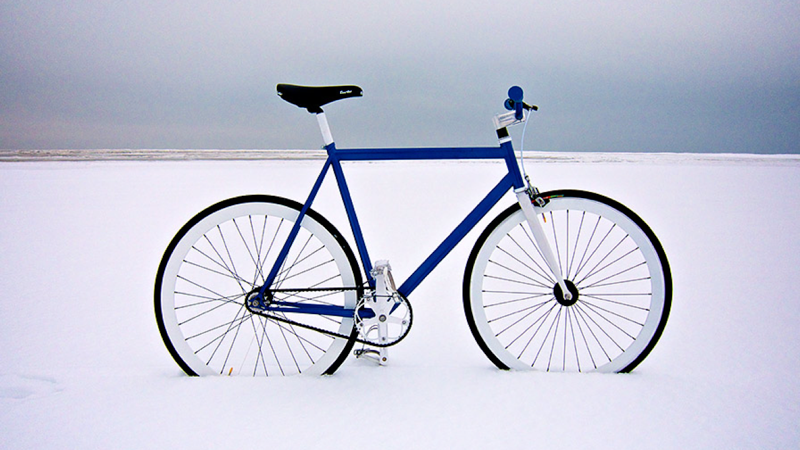
Full Background Image

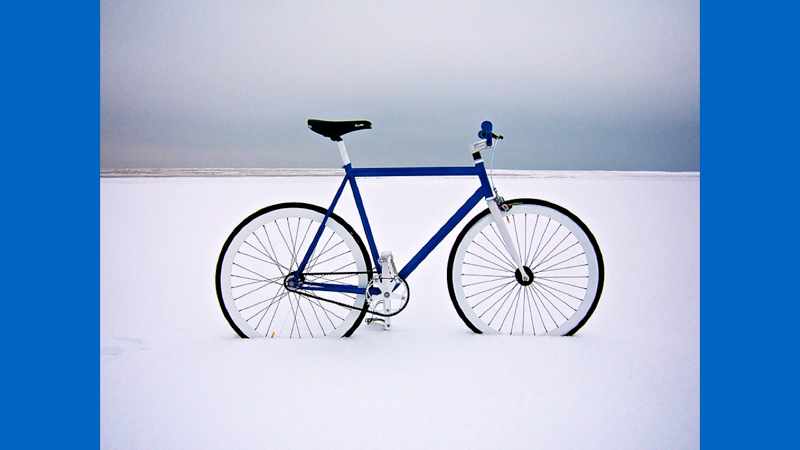
Fit Background Image

Multiple Background Images


Text on Images

# Text on Images
Setting text on images applies a filter to the image to make the text more readable.

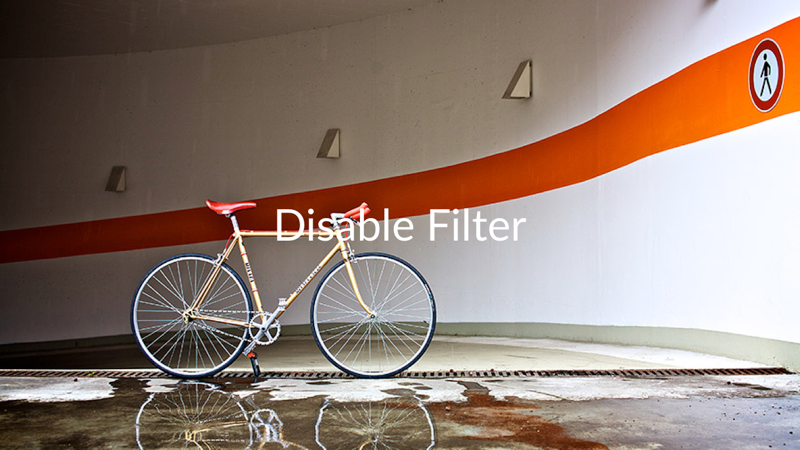
Disable Filter

# Disable Filter
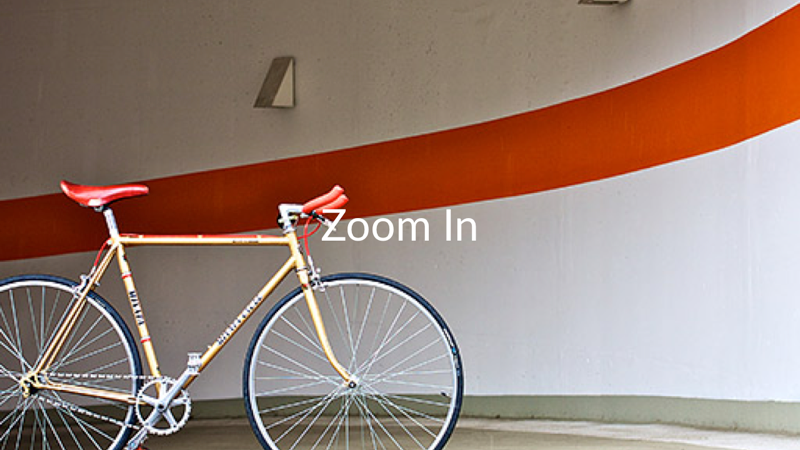
Zoom In

# Zoom In
Split Slides

# Split Slides
Use the `left` or `right` modifiers to place the image in the left or right half of the slide, respectively.

Adjust Filters

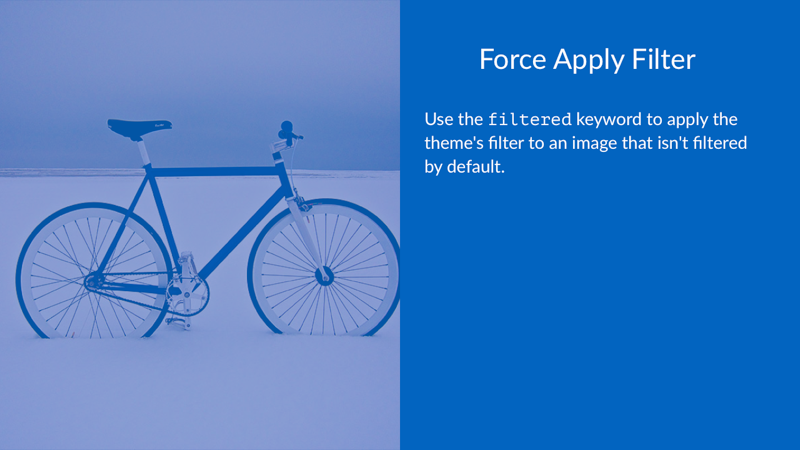
# Force Apply Filter
Use the `filtered` keyword to apply the theme's filter to an image that isn't filtered by default.
Built-in Image Modifiers


Use bn (or bw) for black-and-white, vivid for boosted color/contrast, and noir/chrome/fade for Core Image photo effect presets.
These modifiers replace the theme filter for that specific image.
Saturation


Use saturation(value) to set saturation directly (0...2, clamped).
When combined with bn or vivid, explicit saturation(...) wins for saturation.
Composable Filters


Mix and match filters freely. Deckset applies them in a consistent order, so you always get the same result. Positive vignette(...) values darken the edges. Negative values lighten them.
Additional supported controls include:
blur(0...1)contrast(0...2)brightness(-1...1)exposure(-2...2)vignette(-1...1)sepia(0...1)sharpen(0...1)
Split Slides with Fit

# Split Slides
Combine `left` or `right` with the `fit` keyword or a percentage to adjust the image scaling.

Alpha
Use alpha on an image to specify its opacity.

Global Background Image
To apply a background image to every slide in your presentation, simply add the background-image command at the very top of your Markdown file:
background-image: image2.jpg

(rest of your content)
If a background image conveys information, add an alt(...) description and mark it informative. Background images without descriptions are treated as decorative during accessible export. See Accessible Media.